Has your organisation just joined an energy sharing operation managed by RaYSun? Your gateway is called My Community: this is where you track, meter by meter, the energy actually exchanged with the other members. This guide walks you through logging in, creating your account and accessing your energy data. To discover everything the platform can do next, the guided tour of My Community takes over.
1. Logging in to the platform
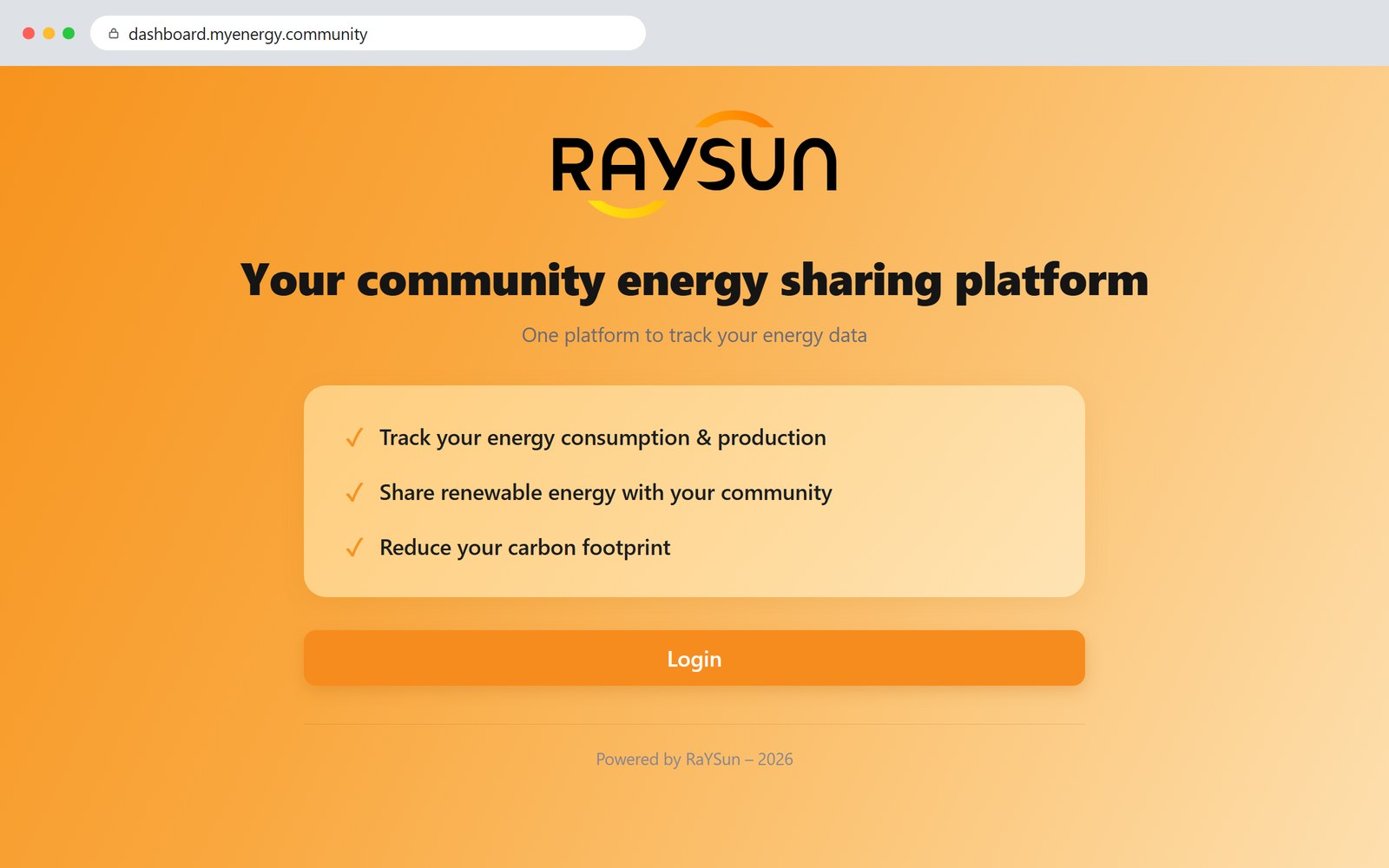
Go to dashboard.myenergy.community — the platform is directly accessible from the raysun.solar website: the “My Community” button, just above in the header of this page, takes you there.
Click Login: you land on the secure sign-in page. If you don’t have an account yet, click Sign up; otherwise simply sign in with your account. You can register in two ways:
- with your e-mail address — a verification e-mail is sent to you;
- with your Google account, in one click.
2. Adding your EAN
On your first login, the platform asks you to enter your EAN and the associated postal address in order to access your energy data. The EAN is the unique identifier of your meter: an 18-digit code starting with 5414489, which you will find on your electricity bill.
The steps to follow:
- Click Register now.
- Click Add new EAN: a form opens.
- Enter your EAN and click Validate EAN.
- Enter the corresponding address and click Validate address.
- If both pieces of information match, confirm with Confirm and add: your EAN now appears on your EAN management page.
Managing several EANs — several buildings, several meters? Simply repeat these same steps for each of them.
3. Viewing your data
Once your profile is created, open the Energy Dashboard tab. Your energy data is displayed for the selected period, which you can adjust to better visualise your consumption or production. Two blocks sum up the essentials:
- Your energy impact — your total consumption and the share that comes from the community’s local renewable sources;
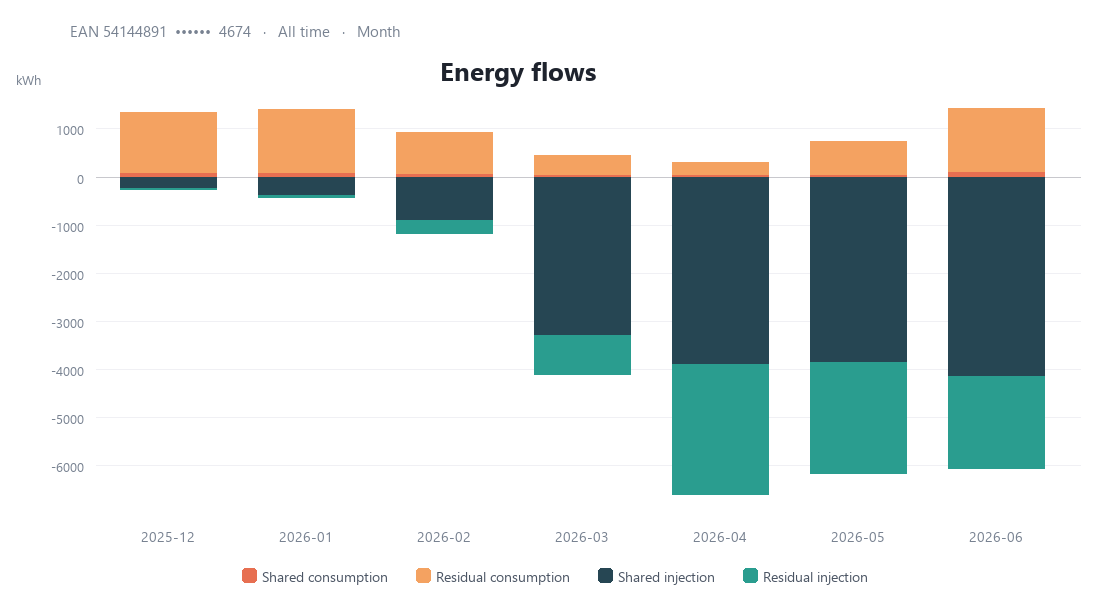
- Energy volumes — shared consumption (the community’s green energy you consume) versus residual consumption (the top-up bought from your supplier when local production isn’t enough).
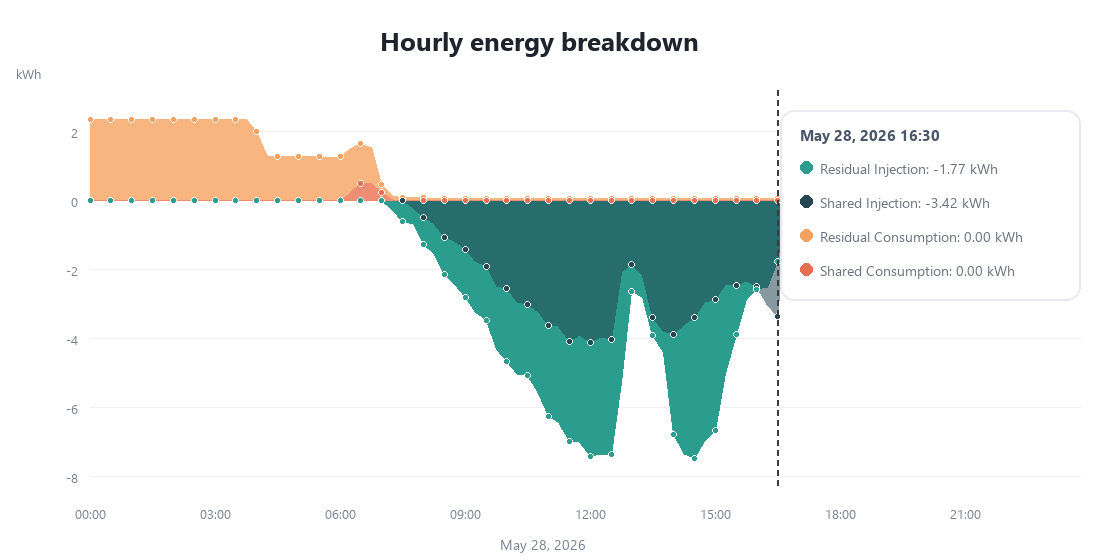
The monthly view shows the seasonality of your exchanges; the daily view details every day; and by clicking on a day you access the hourly data, down to your meter’s 15-minute resolution.
4. Quick troubleshooting
| Issue | Solution |
|---|---|
| I didn’t receive the verification e-mail | Check your spam folder and wait 2–3 minutes. |
| My EAN isn’t recognised | Make sure the postal address matches the one of your meter exactly. |
| I can’t see my data | Contact RaYSun support. |
| I forgot my password | Click “Forgot password?” on the sign-in page. |
This guide is designed to help you find your way around the My Community platform. If a problem persists, contact your RaYSun community manager: that’s what we’re here for.